
How the Plot Editor Works — A Visual Guide
Quick visual walkthrough of the Dear Pantser Plot Editor: generate a plot from your cover, iterate with AI, track character arcs, story beats, and open threads — all in one dashboard.
Your Cover Is Your First Plot
Each cover in Dear Pantser is a book project. The Plot Editor turns a cover into a complete story structure — synopsis, character arcs, story beats, and open threads — all generated by AI, all editable by you.
Click a cover, hit Generate, and the AI builds a plot that matches your genre, tone, and premise. Then iterate until it's bulletproof.
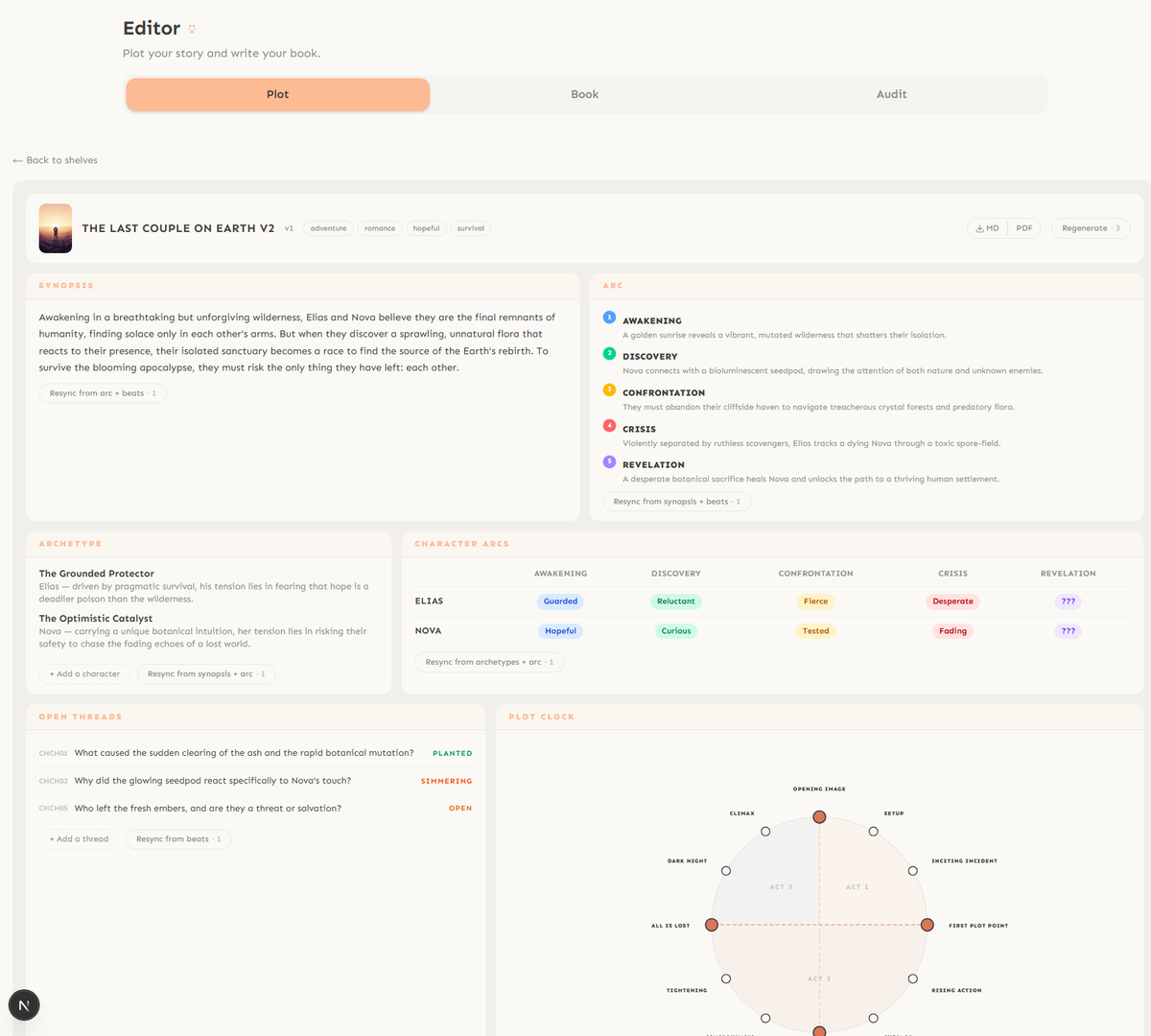
This guide walks you through every panel.
Synopsis & Arc — The Backbone
The top two panels are your story's backbone.
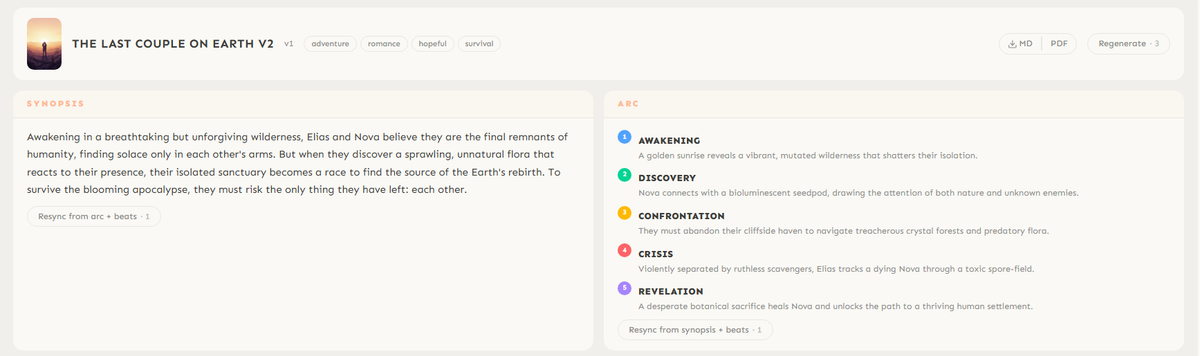
Synopsis — a prose summary of your entire story. This isn't a logline — it's the narrative arc in paragraph form. The AI writes it in your genre's voice. You can edit it freely or regenerate it.
Arc — the story's emotional trajectory in 5 beats. Each beat has a title (Awakening, Discovery, Confrontation, Crisis, Revelation) and a one-line description of what happens. The beats adapt to your genre — horror gets different beats than romance.
Both panels have a Resync button that regenerates them from the current state of your plot (1 credit).
Archetypes & Character Arcs
Below the synopsis, two panels track your characters.

Archetypes — each character gets a narrative role (The Grounded Protector, The Optimistic Catalyst) with a description of their tension. Click + Add a character to add more. The archetype tells you what drives the character and where they'll break.
Character Arcs — a grid showing each character's emotional state at every story beat. "Guarded" at the Awakening, "Fierce" at Confrontation, "Desperate" at Crisis. ??? marks mean the beat hasn't been written yet — the AI leaves room for you to discover.
Both sync from each other: change an archetype, resync the arcs. Change the arc, resync the archetypes.
Open Threads — Questions That Drive Readers
Every good story plants questions. The Open Threads panel tracks them explicitly.
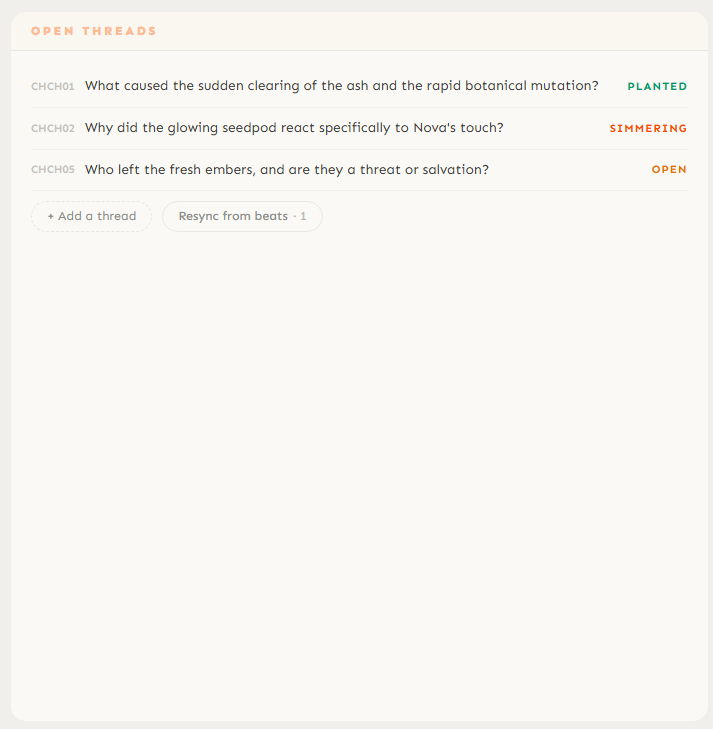
Each thread has a status:
Planted — the question is introduced early. "What caused the sudden clearing of the ash?"
Simmering — it's been raised but not answered, building tension. "Why did the seedpod react to Nova's touch?"
Open — unresolved, waiting for the story to decide. "Are the fresh embers a threat or salvation?"
Click + Add a thread to plant your own questions. The AI generates initial threads from your synopsis.
The Plot Clock — Your Story at a Glance
The Plot Clock is a circular visualization of your entire story structure. Each position on the clock is a story beat — Opening Image, Setup, Inciting Incident, all the way to Climax.
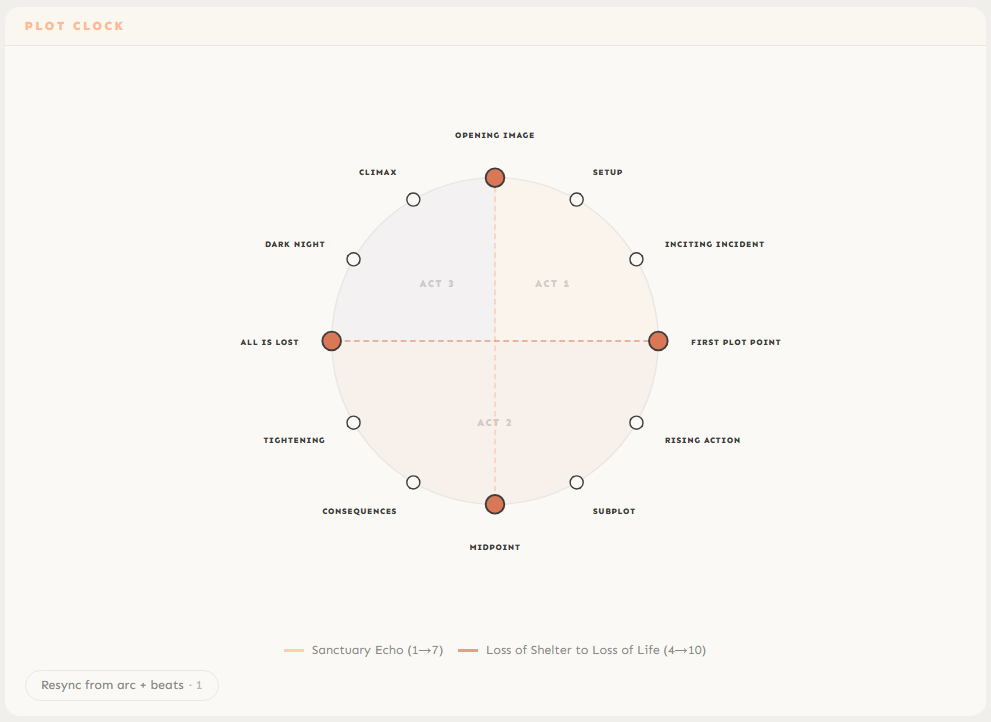
Filled dots are beats that have been generated. Empty dots are waiting. The colored lines connecting beats are narrative threads — they show how story questions weave through the structure.
Click any beat on the clock to expand its detail:
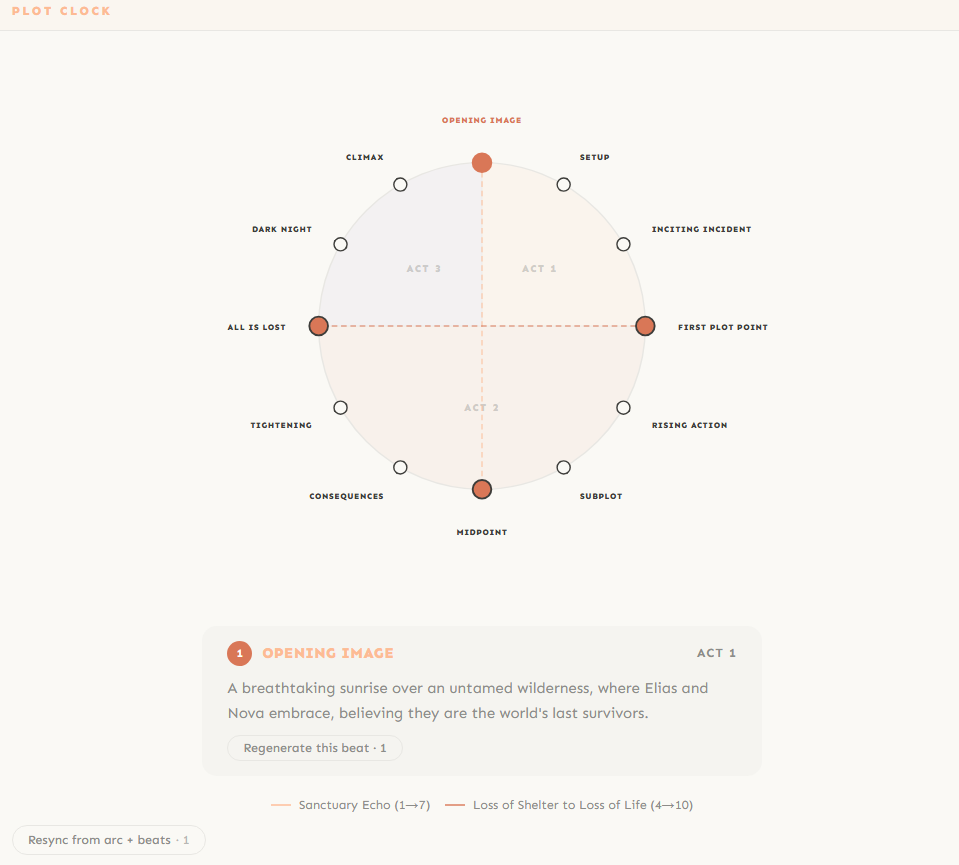
Each beat shows its text, act number, and which threads it connects to. You can Regenerate this beat individually (1 credit) without touching the rest of the plot.
Thread Timeline — See How Stories Weave
Below the Plot Clock, the Thread Timeline shows your narrative threads as colored lines across all 10+ beats.
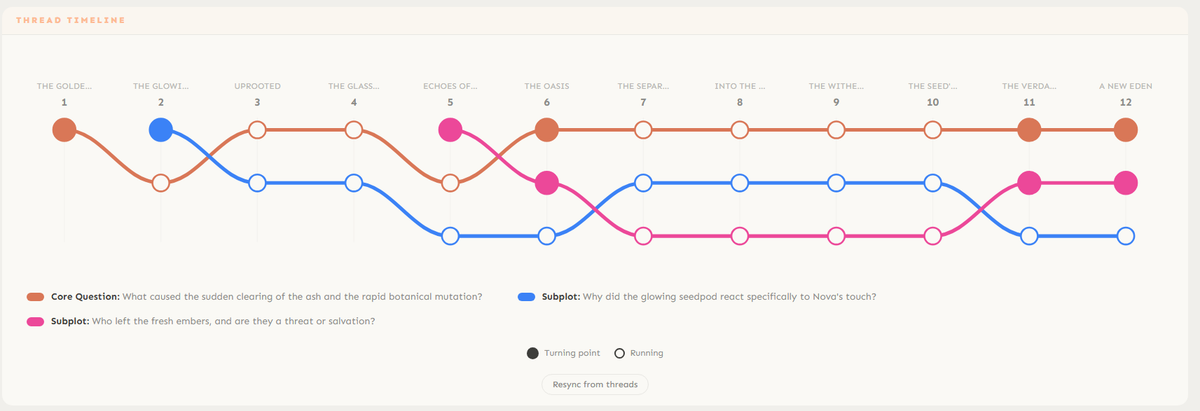
Each line is a thread. Where lines cross beats, those questions are active. Where they stop, they're resolved (or dropped). This visualization makes it instantly clear if a thread disappears for too long or if the climax is overloaded.
Story Beats — The Full Breakdown
The Story Beats panel lists every beat in order with its full description, thread connections, and options to regenerate.
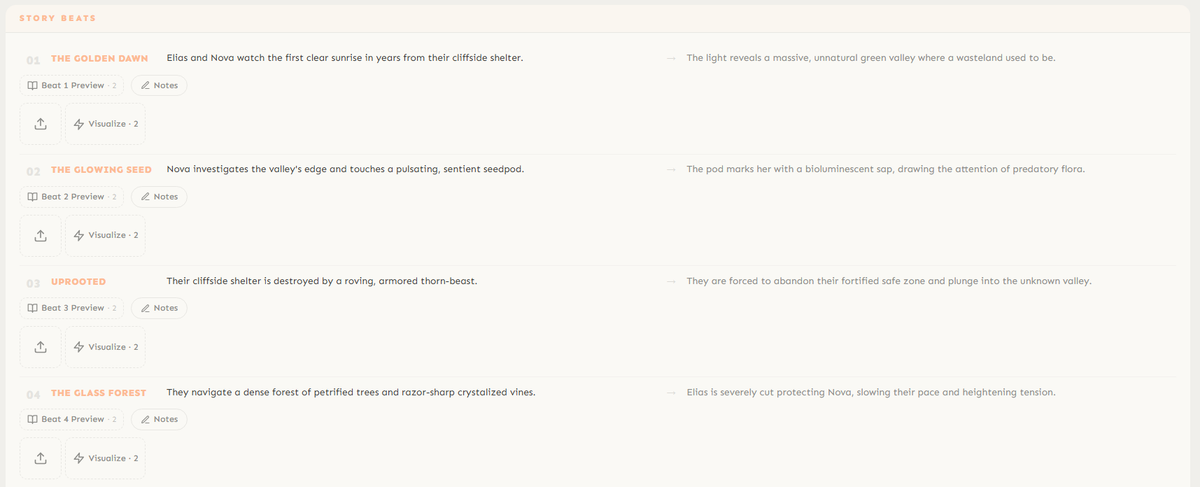
Each beat card shows:
The beat title (The Golden Dawn, The Verdant Anomaly...)
A one-line description of what happens
An italic expansion with more detail and atmosphere
Thread dots showing which narrative questions are active in this beat
Refine & Critique — Make It Bulletproof
At the bottom of the Plot Editor, two tools help you iterate.

Refine — give the AI a specific instruction: "Add a mentor character", "Make the villain more sympathetic", "Move the climax to beat 10", "Add a romance subplot". The AI regenerates the plot following your direction. 1 credit.

Critique — the AI reads your entire plot and rates it. Plot holes, pacing issues, weak character arcs, unresolved threads — it flags everything so you can fix it before writing a single word. 1 credit.
The loop: Generate → Critique → Refine → Critique → repeat until the critique comes back clean. Then start writing in the Book Editor.
Start Publishing with Dear Pantser
AI covers, market analysis, blurb writer, and plot tools — all in one place.
Get StartedRelated Articles
Unlock the power of Amazon Ads for authors. Learn how to set up, optimize, and scale your campaigns for profitability, starting with just $5 a day.
Unlock the secrets to creating high-quality audiobooks in 2026, blending AI narration with traditional methods. Learn about tools, platforms, and best practices for indie authors.
Honest comparison of AI book cover generators in 2026: Dear Pantser, BookBrush, Canva, Midjourney, and DALL-E. Genre accuracy, typography, dimensions, cost, and learning curve — with data from 2,500+ books analyzed.