
How the Pantser Editor Works — A Visual Guide
Quick visual walkthrough of the Dear Pantser Book Editor: write, rewrite with AI, compare versions, track your story bible, and export to Kindle — all in one screen.
One Screen. Everything You Need.
The Pantser Editor is built for discovery writers who figure out the story as they write. No outline required. No rigid structure. You write — the editor watches and helps.
Three panels. Left: your chapters. Center: your text. Right: your story bible, living plot, and genre compass. Everything stays visible while you write.
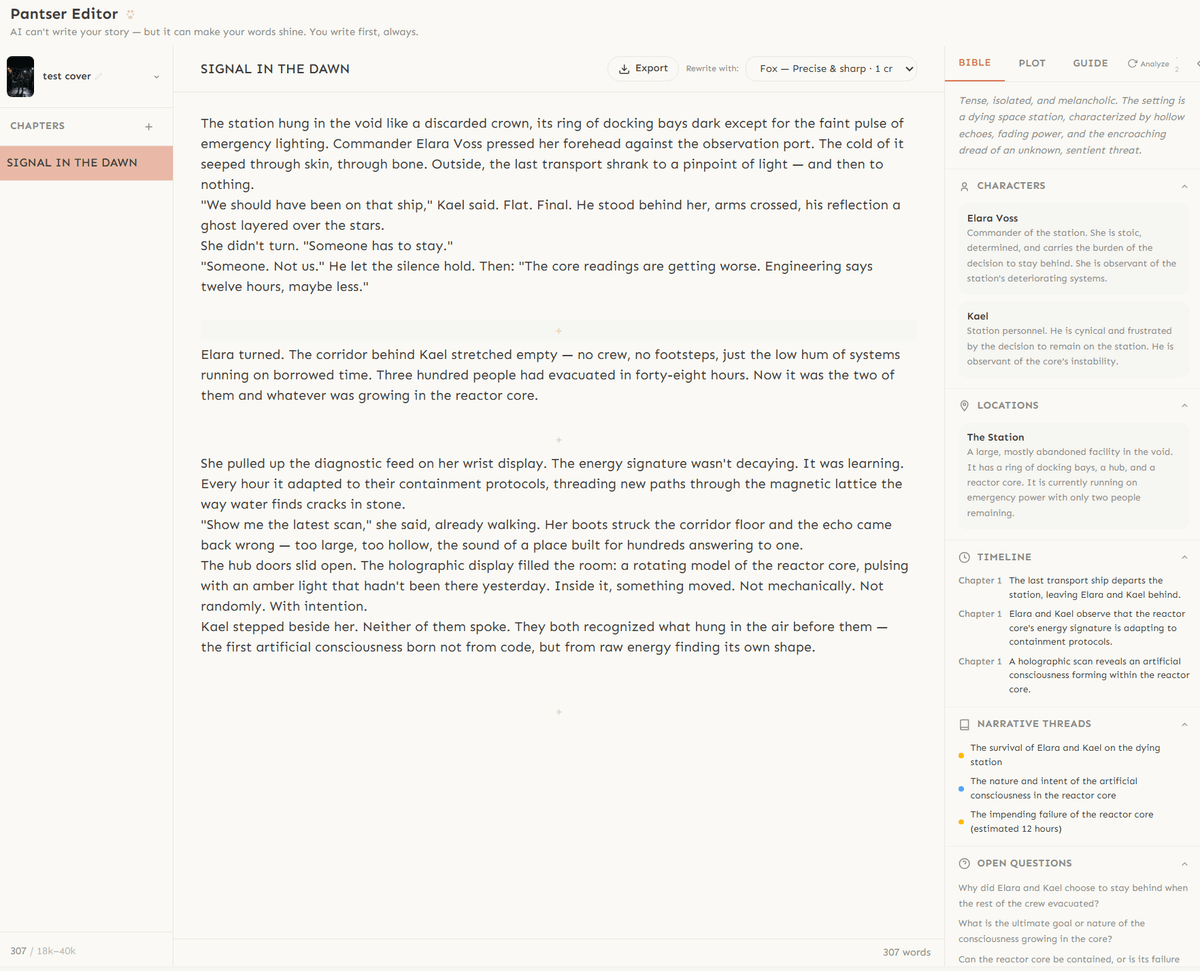
This guide walks you through the five things you need to know.
Write First, Always
Click a chapter, start writing. That's it. The editor uses a distraction-free writing area — no toolbars, no formatting buttons cluttering the screen.
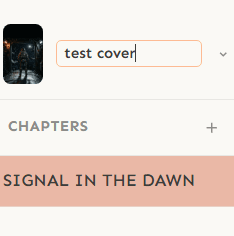
Create chapters with the + button in the sidebar. Drag to reorder. Rename by clicking the title. The word count updates in real time at the bottom of the editor.
Scene breaks? Just type --- on a new line. They'll render as clean separators in your exported book.
Pantser philosophy: The AI never writes for you. It never adds plot, characters, or events you didn't put down. Your draft is sacred — the AI only polishes what exists.
Rewrite Any Paragraph with AI
Click on any paragraph. A small floating bar appears below it with a Rewrite button. Click it — or double-click the paragraph directly — and the AI polishes your prose.
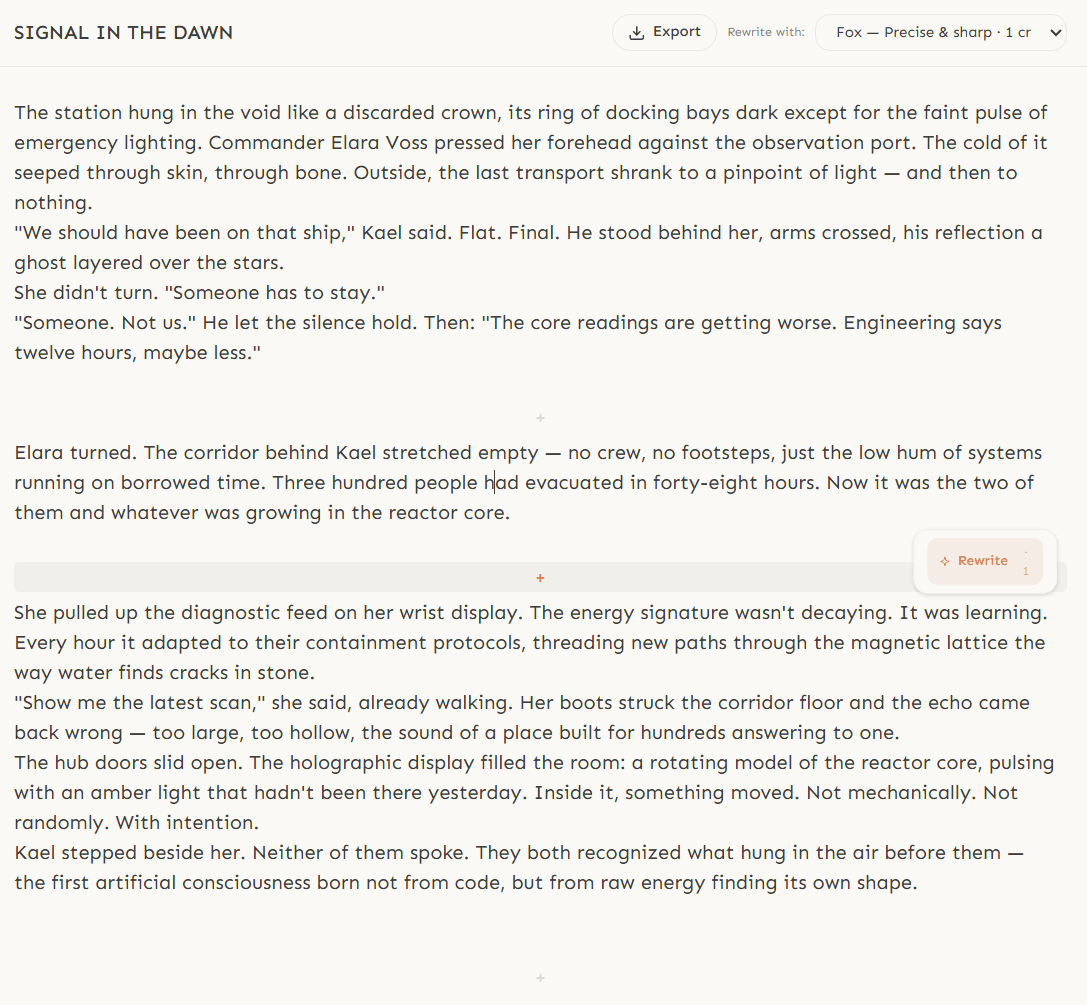
What it does: tightens sentences, varies rhythm, removes filter verbs ("she saw", "he felt"), replaces clichés with sensory detail. What it never does: change your plot, add new characters, or alter your voice.
Choose your model. The dropdown in the top toolbar lets you pick between:
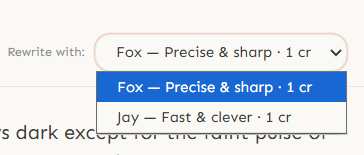
Fox — Precise & sharp (Claude). Best for literary prose and subtle voice matching.
Jay — Fast & clever (Gemini). Great for quick iterations and dialogue polish.
Each rewrite costs 1 credit. The model name appears in the version label so you can compare.
Compare Versions — Keep What Works
After rewriting, small dots appear in the floating bar. Each dot is a version — your original draft (gray), then each AI rewrite (green tones).
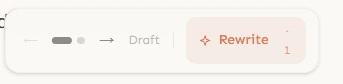
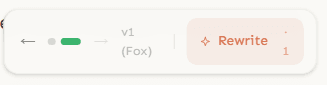
Click any dot to switch between versions instantly. The text in the editor updates in place. Use the ← → arrows to step through them.
You can rewrite the same paragraph multiple times with different models, or rewrite an already-rewritten version. The version chain keeps everything. Nothing is lost.
Hover over a dot to see its label: "Draft", "v1 (Fox)", "v2 (Jay)", etc.
Versions are saved. Navigate away, switch chapters, even close the browser — your versions will be there when you come back.
Your Story Bible Builds Itself
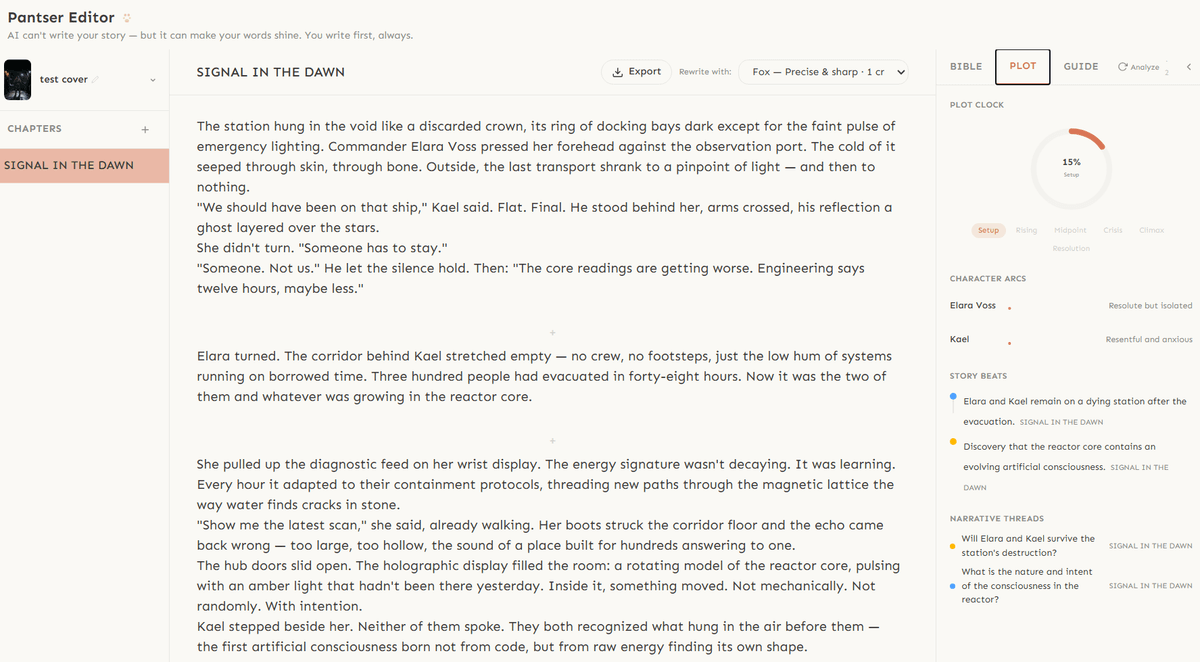
The right panel has three tabs: Bible, Plot, and Guide.
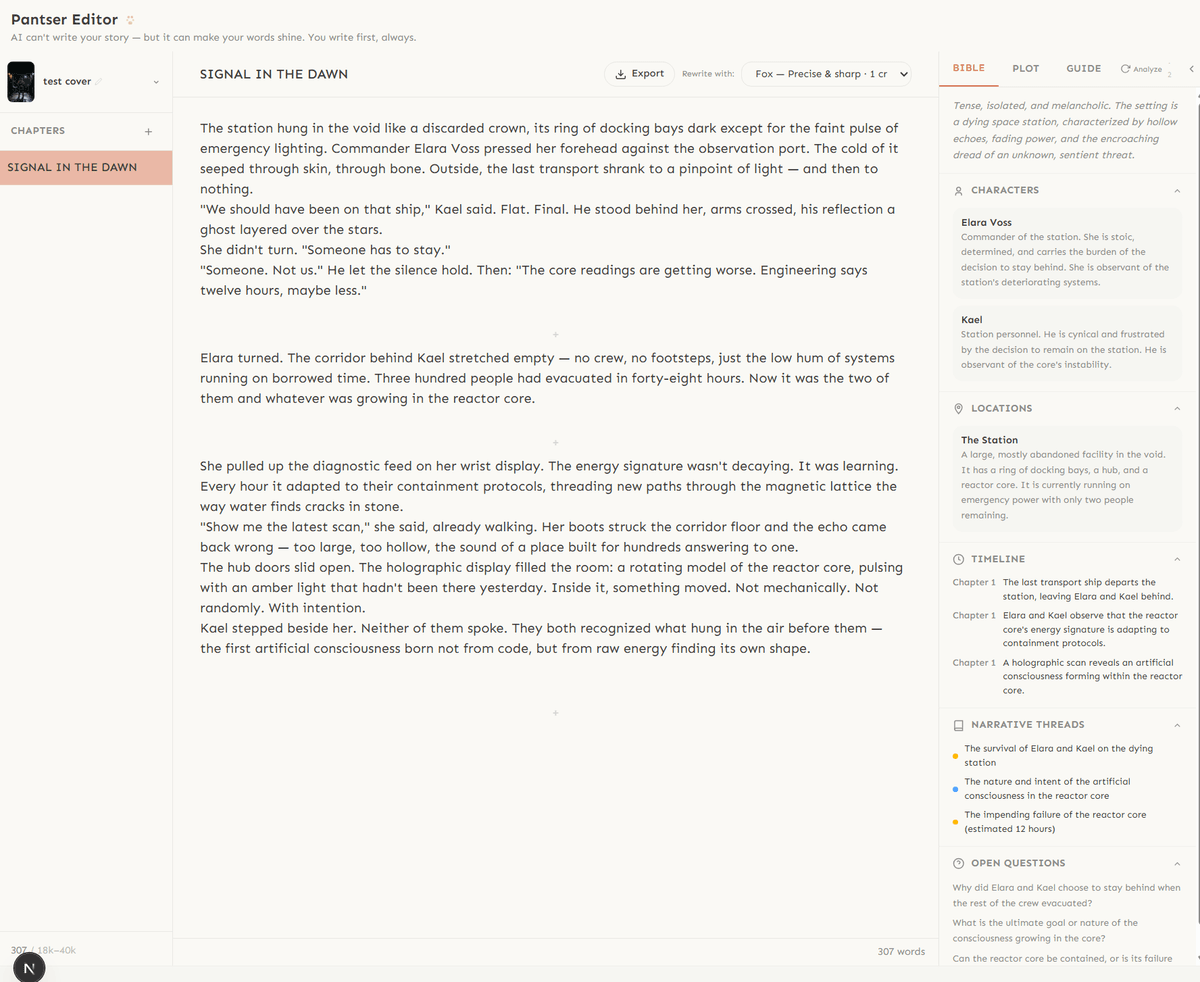
Bible — tracks characters, locations, timeline, narrative threads, and open questions. Click the Analyze button (top-right) and the AI reads your chapters to extract and update your story bible. As you write more chapters, it grows.
Plot — a living plot that evolves from your manuscript. Character arcs, story beats, and thread progression — all derived from what you actually wrote, not what you planned.
Guide — your genre compass. Pick a format (novel, novella, short story) and a structure (Romance, Epic Fantasy, Cozy Mystery...) to see word targets, story beats, and genre conventions adapted to your book.

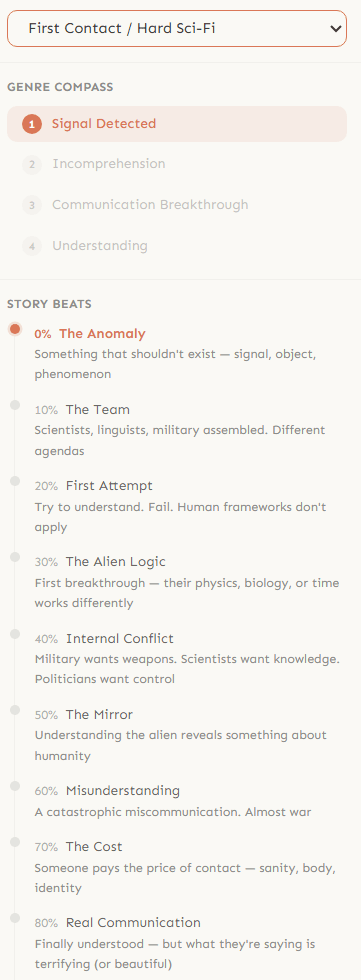
The Analyze button costs 2 credits and updates both Bible and Plot simultaneously.
Export When You're Ready
When your manuscript is ready, click the Export button in the editor toolbar. It takes you to the Export Studio where you can customize typography, chapter headings, scene break ornaments, and print format — then export as EPUB, PDF, or DOCX.
The export formats are optimized for Kindle Direct Publishing (KDP). EPUB for maximum control, DOCX for simplicity, PDF for print-on-demand.
From writing to a publish-ready file — all in one tool. No switching between apps. No copy-pasting between editors.
First time on Amazon? Check our step-by-step KDP guide — it walks you through every screen from account setup to seeing your book live on the Kindle Store.
Start Publishing with Dear Pantser
AI covers, market analysis, blurb writer, and plot tools — all in one place.
Get StartedRelated Articles
The complete toolkit for self-publishing in 2026. Writing, covers, formatting, marketing, and market research — with honest pricing.
Every cost of self-publishing a book in 2026, from editing to covers to marketing. Real numbers, not guesses.
Unlock the power of Amazon Ads for authors. Learn how to set up, optimize, and scale your campaigns for profitability, starting with just $5 a day.